
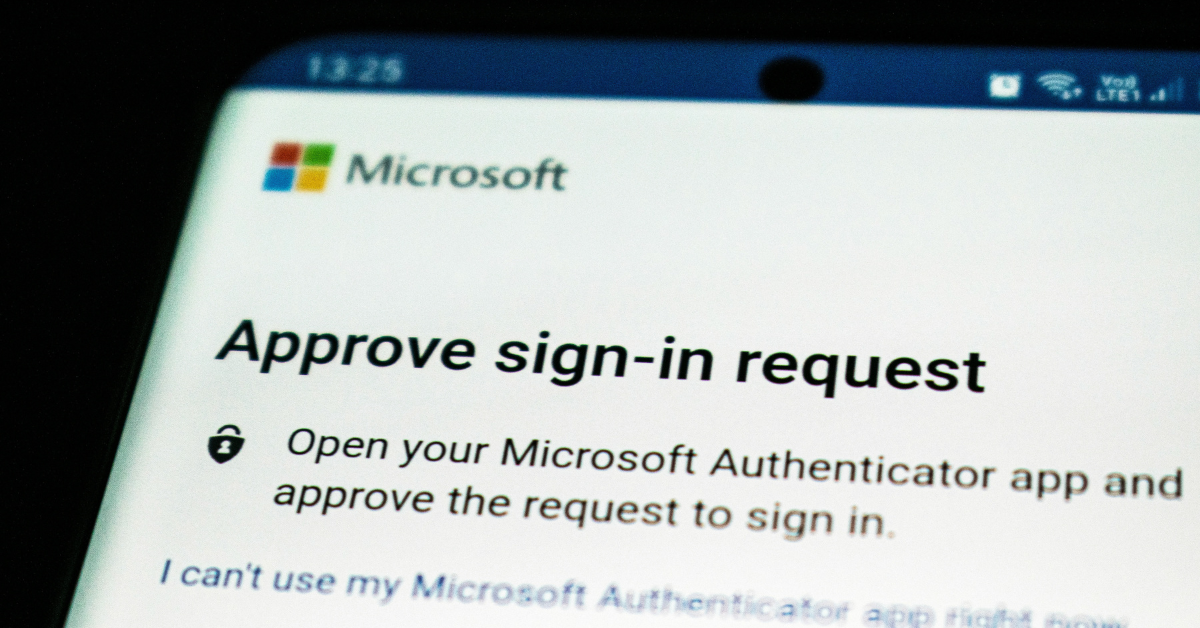
Multi-factor authentication, commonly called MFA, has become one of the most important protections a business can put in place. It helps stop attackers from getting into company accounts even when a password has been stolen, guessed, reused, or leaked in a breach. However, there is a real problem many businesses are running into: people are tired of MFA prompts.
Employees are juggling email, Teams, payroll systems, accounting tools, CRMs, file sharing platforms, vendor portals, and remote access systems. When every app seems to ask for another code, another approval, or another phone notification, MFA can start to feel like a daily annoyance instead of an important security control.
That frustration is understandable. But turning MFA off, weakening it, or only applying it to a few users is not the answer. The right answer is to build an MFA strategy that protects the business without making employees miserable. Passwords are no longer enough to protect business accounts. NIST notes that MFA adds protection by requiring more than just a username and password, using a combination of something you know, something you have, or something you are.
For a small business, one compromised account can create a chain reaction. If an attacker gets into email, they may be able to reset passwords for other services, read invoices, impersonate executives, redirect payments, access sensitive files, or launch phishing attacks against clients and vendors. That is why MFA matters so much. It creates a second barrier between a stolen password and your business data.
The problem is that not all MFA is equally strong. Microsoft has warned that traditional MFA methods like SMS codes, email one-time passcodes, and basic push notifications are becoming less effective against modern attackers, especially when attackers use phishing, social engineering, or MFA bombing to wear users down. In other words, the goal should not simply be “turn on MFA.” The goal should be to use the right kind of MFA in the right places.
First let’s identify what we mean by “MFA fatigue”, MFA fatigue can mean two different things. first is normal user frustration. Employees get annoyed when they are prompted too often, especially if prompts feel random, repetitive, or disruptive.
The second is an actual attack technique. In an MFA fatigue or “push bombing” attack, a criminal already has the user’s password and repeatedly sends MFA approval prompts, hoping the user eventually taps “approve” just to make the noise stop. Microsoft specifically identifies user fatigue and MFA bombing as ways attackers bypass weaker authentication methods. This is why businesses need to treat MFA fatigue seriously. It is both a usability issue and a security issue.
Some businesses technically have MFA enabled, but only in a limited or inconsistent way. That can create a false sense of security. Common issues include:
- MFA is required for some employees but not all.
- Admin accounts are not protected with stronger authentication.
- Email-based MFA is used as the primary method.
- SMS codes are allowed for sensitive accounts.
- Employees receive push prompts without number matching or location context.
- Legacy authentication methods are still allowed.
- Former employees, contractors, or shared accounts are not reviewed.
- MFA recovery processes are informal or undocumented.
These gaps matter, attackers usually do not need access to every account. They only need access to one useful account. A compromised mailbox can lead to business email compromise, fraudulent payment requests, client impersonation, data theft, or ransomware. For businesses that work with regulated data, financial information, legal documents, healthcare information, or client confidential records, the risk is even higher.
A good MFA strategy should be strong, simple, and consistent. It should protect the business while reducing unnecessary friction for users. First, require MFA for every user. MFA should not be limited to owners, managers, or employees who “handle sensitive information.” In a modern cloud environment, almost every account has some level of business risk.
Second, prioritize stronger authentication methods. App-based MFA is better than SMS or email-based verification, but phishing-resistant methods are better still. Microsoft describes passkeys as phishing-resistant credentials that can serve as an MFA method, and notes that they can reduce prompts while improving security.
For most small businesses, a practical MFA roll out path looks like this:
- Eliminate email-based MFA wherever possible.
- Move users to an authenticator app with number matching.
- Use passkeys or security keys for administrators, finance users, executives, and anyone with access to sensitive systems.
- Keep SMS only as a temporary fallback, not the preferred method.
- Document account recovery so users are not locked out when phones are replaced or lost.
Microsoft also notes that number matching is critical to reducing accidental MFA approvals, especially as MFA fatigue attacks increase. The best MFA setup is not the one that prompts users constantly. The best setup is the one that prompts users when it actually matters.
Small businesses can reduce MFA fatigue by using smarter access policies. For example, users may not need to be prompted every single time they access a trusted app from a managed device in a normal location. But they should absolutely be challenged when signing in from a new device, an unusual location, a risky session, or a sensitive admin portal. This is where conditional access policies can help. Instead of treating every login the same, conditional access allows the business to apply stronger controls based on risk.
A good policy may consider:
- Who the user is
- What app they are accessing
- Whether the device is trusted
- Whether the sign-in location is expected
- Whether the account has administrative privileges
- Whether the session appears risky
This gives employees a smoother daily experience while still applying stronger controls when the risk is higher. MFA is not just a technical setting. Employees need to understand what to do when they receive a prompt. The rule should be simple: never approve an MFA prompt you did not initiate.
If an employee receives an unexpected MFA prompt, that may mean someone already has their password. They should deny the request and report it immediately. Users should not ignore it, approve it, or assume it is a glitch. Training does not need to be complicated. A short, clear explanation is usually enough:
“MFA prompts should only appear when you are actively signing in. If you get a prompt you did not request, deny it and contact IT.” That one rule can stop a serious incident.
Also, Administrative accounts deserve extra protection. These accounts can often change security settings, reset passwords, access sensitive data, create new users, modify mail flow, and approve applications. For admin accounts, stronger MFA should be required. Passkeys, FIDO2 security keys, or other phishing-resistant methods are strongly preferred. NIST also recommends phishing-resistant authentication for sensitive applications and users with elevated privileges. Business owners, finance users, HR users, and anyone who can approve payments or access confidential client data should also be considered high-risk.
Special consideration should also be taken when addressing new employees. MFA should be built into onboarding, role changes, and offboarding. When a new employee starts, they should be enrolled in the correct MFA method from day one. When someone changes roles, their access and authentication requirements should be reviewed. When someone leaves the company, their sessions should be revoked, their account should be disabled, and their access should be removed promptly.
This is especially important for small businesses because responsibilities often overlap. One person may handle finance, HR, operations, and vendor relationships. That makes account security even more important.
The bottom line is MFA fatigue is real. Employees are tired of excessive prompts, confusing login flows, and security tools that get in the way of work, but avoiding MFA is not a realistic option. The risk of account compromise, payment fraud, data theft, and business disruption is too high. The better approach is to modernize MFA. Require it consistently, move away from weaker methods, use phishing-resistant authentication where possible, reduce unnecessary prompts, and train users to recognize suspicious activity.
Security should not feel like punishment. Done correctly, MFA can become a normal, low-friction part of doing business safely. If your business is still relying on passwords alone, email-based MFA, SMS codes, or inconsistent MFA policies, now is the time to review your setup. Valley Techlogic can help evaluate your current Microsoft 365 and cloud security configuration, identify gaps, and build an MFA strategy that protects your business without overwhelming your users. Learn more today with a consultation.

- Rolling out Microsoft 365 Copilot in your office environment? Here are 8 permissions to pay attention to keep your data safe
- Are you keeping track of breaches that are happening with your vendors? What small businesses can learn from the Klue/Salesforce breach
- Rumors and speculations are flying surrounding Anthropic’s Fable 5, why it was shut down and when it might return
- Addressing legacy tech debt, 5 strategic ways to clean up your office and remove covert cyber security threats hidden in plain sight
- An anonymous company accidentally spent 500 million on Claude in one month when it placed no usage limits on employees, and how it relates to your AI strategy as a small business
This article was powered by Valley Techlogic, leading provider of trouble free IT services for businesses in California including Merced, Fresno, Stockton & More. You can find more information at https://www.valleytechlogic.com/ or on Facebook at https://www.facebook.com/valleytechlogic/ . Follow us on X at https://x.com/valleytechlogic


